Introduction
Suppose you’ve noticed icons appearing in the Ubuntu applications menu that you want to:
- Remove along with the application — we’ll consider this separately.
- Remove only the icon — this is covered here.
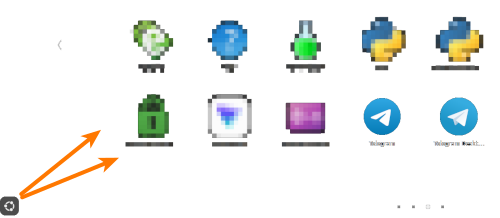
In this example, I want to remove the Telegram or Telegram Desktop icon without affecting the application itself.
Installation Methods
You may not remember how you installed it. It could be one of these methods:
| # | Installation Method | How to Identify | How to Remove (Terminal) | Notes / Risks |
|---|---|---|---|---|
| 1 | Built-in repository | apt policy имя → archive.ubuntu.com |
sudo apt remove --purge имя && sudo apt autoremove |
Safe, but autoremove may affect other packages — check carefully. |
| 2 | Added repository (PPA and others) | apt policy имя → external URLFile in /etc/apt/sources.list.d/ |
1. sudo apt remove имя2. Delete .list + key3. sudo apt update |
Remove the package before the repository — otherwise, apt errors. |
| 3 | .deb package |
`dpkg -l | grep имя` | sudo apt remove --purge имя (better than dpkg -P) |
| 4 | Snap | `snap list | grep имя<br>which имя→/snap/bin/имя` |
sudo snap remove имя |
| 5 | Flatpak | `flatpak list | grep имя` | flatpak uninstall имя && flatpak remove --unused |
| 6 | Precompiled binary (AppImage, .tar.gz) |
Not in apt/dpkg/snapBinary in ~/Apps/, /opt/, ~/.local/bin/ |
rm -rf /path/to/program ~/.local/share/applications/имя.desktop ~/.config/имя/ |
No centralized management — easy to “forget” something. |
| 7 | .run installer |
Ran sudo ./имя.runHas /opt/имя/, uninstall.sh |
1. sudo /opt/имя/uninstall.sh2. Otherwise manually — /opt/, /usr/bin/, .desktop, systemd, ~/.config/ |
Most “dirty” method. Often leaves no uninstall script. |
| 8 | Compilation (make install) |
which имя → /usr/local/bin/ |
1. make uninstall (if available)2. Otherwise — manually |
Removal or checkinstall in the future |
| 9 | Managers (pipx, cargo, npm -g) |
which name → ~/.local/bin/, ~/.cargo/bin/ |
pipx uninstall name, cargo uninstall name, npm uninstall -g name |
Doesn’t break the system, but may conflict with apt versions (e.g., node). |
This is an incomplete list, and I hope you won’t use other alternatives 
go install,gem install- Docker / Podman images with GUI
- Installation via linuxbrew / nix / guix
What is NOT considered a separate installation method
apt install ./file.deb→ this is still installing a.debpackage, just throughaptinstead ofdpkg.- GUI installers (Software Center, Discover) → frontend for
apt/snap/flatpak. - “Add to startup” /
systemd --user→ this is post-installation configuration, not an installation method.
How to quickly determine the installation method of an unknown program?
# 1. Where is the binary located?
which name

# 2. Where did the package come from (if from apt/dpkg)
dpkg -S $(which name) 2>/dev/null || echo "Not in dpkg"

# 3. Check snap/flatpak
snap list | grep -i name
flatpak list | grep -i name

# 4. Check if in ~/.local/bin or /opt
ls -l $(which name)

# 5. Check installation history (if recent)
grep "install.*name" /var/log/apt/history.log 2>/dev/null
journalctl --since "2 weeks ago" | grep -i "install.*name"
Tips for a clean system:
- For
.runprograms in the future — consider AppImage or isolation viabubblewrap/toolbox. - Instead of
make install, usecheckinstall→ creates a.deb, easily removable viaapt. - Manage user
.desktopfiles through~/.local/share/applications/— they always override system ones.
Where are all the application menu icons located?
This is not an icon, but a launcher script. Similar to those used to start services (remember?)
One of the locations:
/usr/share/applications/
Analysis of the Telegram application
ls -l /usr/share/applications/ | grep -i tele
-rw-r--r-- 1 root root   371 Mar  6  2020 telegram.desktop
cat /usr/share/applications/telegram.desktop

[Desktop Entry]
Encoding=UTF-8
Version=1.0
Type=Application
Terminal=false
Name=Telegram Desktop
Exec=/opt/telegram/Telegram -- %u
Comment=Official desktop version of Telegram messaging app
Icon=/opt/telegram/telegram.svg
StartupWMClass=Telegram
Categories=GNOME;GTK;Network;
MimeType=application/x-xdg-protocol-tg;x-scheme-handler/tg;
X-Desktop-File-Install-Version=0.22
From this, it’s clear that the executable file is located in
ls -l /opt/telegram/

total 190652
-rwxr-xr-x 1 root root        55 Mar  6  2020 Telegram
-rwxrwxr-x 1 root root   2184648 Nov  8 14:17 Updater
-rwxrwxr-x 1 root root 193023296 Nov  8 14:17 telegram
-rw-r--r-- 1 root root      4762 Mar  6  2020 telegram.svg
Now it’s clear that the icon’s label is Telegram Desktop.
The reference points to the file /opt/telegram/Telegram. It’s suspiciously small, 55 bytes — let’s see what’s inside:
cat /opt/telegram/Telegram

#!/usr/bin/env bash
/opt/telegram/telegram -noupdate $@
This is a wrapper script (wrap=wrapper), which in turn calls /opt/telegram/telegram with a command-line flag telling Telegram not to check for or automatically install updates.
$@ is a special variable that expands into separate arguments passed to the script. It’s recommended to use this construct in double quotes to avoid issues when an argument contains a space. However, it seems to be excluded here, as the argument is likely a username or login, which doesn’t contain spaces or special characters.
The file /opt/telegram/telegram is executable — it has the x attribute (for directories, this attribute means you can traverse through them even if you don’t have read permissions for their contents).
 This is only one of the icons and what it’s associated with. It’s still unclear how the application was installed. According to the table, it might have been a run installer, but that’s not certain. Telegram is either installed as a snap from the app store or as a tar.gz archive. The latter seems more likely.
To find files for the second application, use the whence command.
whence
Actually, this is not a command, but an alias (when a word command hides multiple lines of code).
Open your ~/.bash_aliases — if the file doesn’t exist, create it. Add these lines to it:
# whence — quick check of installation method
whence() {
    local prog="$1"
    [ -z "$prog" ] && { echo "Usage: whence <program>"; return 1; }

    echo "=== $prog ==="
    echo "• which: $(which \"$prog\" 2>/dev/null || echo '—')"
    echo "• snap: $(snap list 2>/dev/null | grep "^$prog " || echo '—')"
    echo "• flatpak: $(flatpak list --app 2>/dev/null | awk -v p=\"$prog\" '$1==p {print $1\":\"$3}' || echo '—')"
    echo "• dpkg: $(dpkg -S \"$(which \"$prog\" 2>/dev/null)\" 2>/dev/null | cut -d: -f1 || echo '—')"
    echo "• .desktop: $(find ~/.local/share/applications /usr/share/applications -name \"*$prog*.desktop\" 2>/dev/null | head -1 || echo '—')"
It is configured so that .bash_aliases is sourced by the file ~/.bashrc. Therefore, after making changes to the file, apply them (these changes will only take effect in the terminal session where you run the command below (or upon a new login to the system):
source ~/.bashrc
Externally, nothing will change, but new variables and aliases will appear in the session.
Check:
whence telegram

=== telegram ===
• which: —
• snap: —
• flatpak:
• dpkg:
• .desktop: /home/ivan/.local/share/applications/org.telegram.desktop._18faa92ddda377ceaa5a576303af9e59.desktop
You can notice that the .desktop file here is not in the system-wide directory /usr/share/applications/, but in the home directory (see how many there are):
ls -l ~/.local/share/applications/

-rwxrwxr-x 1 ivan ivan 579 Nov  8 16:22 org.telegram.desktop._18faa92ddda377ceaa5a576303af9e59.desktop
For now, we are interested in the content of this file:
cat ~/.local/share/applications/org.telegram.desktop*

[Desktop Entry]
Name=Telegram
Comment=New era of messaging
TryExec=/opt/telegram/telegram
Exec=/opt/telegram/telegram -- %u
Icon=org.telegram.desktop
Terminal=false
StartupWMClass=TelegramDesktop
Type=Application
Categories=Chat;Network;InstantMessaging;Qt;
MimeType=x-scheme-handler/tg;x-scheme-handler/tonsite;
Keywords=tg;chat;im;messaging;messenger;sms;tdesktop;
Actions=quit;
DBusActivatable=true
SingleMainWindow=true
X-GNOME-UsesNotifications=true
X-GNOME-SingleWindow=true

[Desktop Action quit]
Exec=/opt/telegram/telegram -quit
Name=Quit Telegram
Icon=application-exit
The icon’s name is Telegram (without “Desktop”).
The script points to the same executable file /opt/telegram/telegram, but without passing the variable and the “do not update” flag. I don’t know why. My inner voice suggests that the developer should have a consistent approach regardless of deployment options. But perhaps this point is not critical here. The login is not mandatory — it will be pulled from settings. The difference will be only in automatic software updates. And by the way, the user will see a notification in one case that Telegram needs to be updated, while in the other case, the application will update itself and wait for a restart (though this is not guaranteed).
In short, we found that both icons lead to the same instance of Telegram — which is the most important thing. Now we can remove one of them, since the program and settings (profile) are shared.
Let’s delete the less attractive one:
~/.local/share/applications/org.telegram.desktop._18faa92ddda377ceaa5a576303af9e59.desktop
DO NOT DELETE the file. Icon hiding is done differently!
Removing Only the Telegram Icon from the Menu (Leaving the Program and Service)
Add the parameter Hidden=true to the [Desktop Entry] section in the script:
sed -i '/^\\[Desktop Entry\\]$/a Hidden=true' ~/.local/share/applications/org.telegram.desktop._18faa92ddda377ceaa5a576303af9e59.desktop
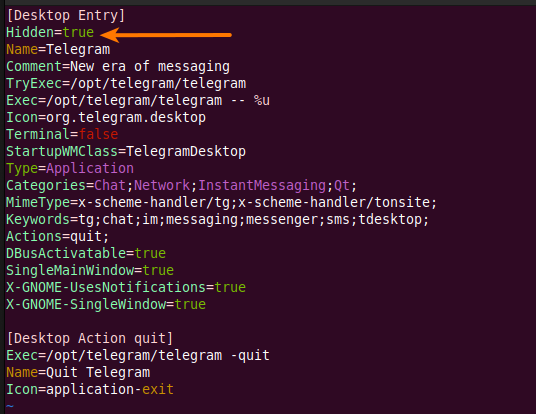
Note: This is a simplified command. It does not check whether such a line already exists in the file (on subsequent runs) or not. But duplicates are not a problem.
The change will take effect immediately — the icon will disappear from the menu. To restore the icon, simply delete the newly added line (indicated by the arrow).